


A Shopify store is on your own domain, which puts you in a better position on Pinterest than marketplace sellers. You can claim the site, install the Pinterest tag, sync a product catalog and get Rich Pins. Most of that takes one app. What the app doesn't do is make the pins that tend to get saved: lifestyle images, collection roundups and blog content. This guide covers both halves.
Part 1: Connect the store with the Pinterest app
The Pinterest app for Shopify is built by Pinterest and is free to install (Pinterest only charges if you buy ads). According to Pinterest's setup guide, connecting it does four things:
- claims your website on Pinterest
- installs the Pinterest tag and the Conversions API
- connects your Shopify product feed as a Pinterest catalog
- generates Product Pins from that feed
Before you install: you need a Pinterest business account, an advertiser account, and you need to be the account owner. Each store connects to one Pinterest business account. If you or a previous app already added the Pinterest tag to your theme by hand, Pinterest recommends removing it first so events aren't counted twice.
How often it syncs: Pinterest says Shopify feeds update every 24 hours, and collections sync as product groups every 48 hours (Pinterest Help: Shopify app troubleshooting).
Catalog rules still apply. Your store has to meet Pinterest's merchant guidelines: a clear return policy and contact details, no broken pages, no forced sign-up to see products, and price and stock data that's kept current. Meeting them is one of Pinterest's requirements for catalogs, so check your policy pages before connecting.
Part 2: Check that Rich Pins work
Product Rich Pins show live price and availability on the pin. Pinterest reads them from Open Graph or schema.org tags on the product page, and there's no longer an application step: pages with the right tags just show up as Rich Pins, usually within 24 hours (Pinterest Help: Rich Pins). Shopify's free themes output Open Graph tags (Shopify Help), and Pinterest's developer docs say Shopify pages already have the correct metadata (Pinterest Developers: Product Rich Pins).
If you use a heavily customized or third-party theme, open a product page's source and look for og:type set to product and product:price:amount. If those are missing, Rich Pins won't show prices.
Part 3: Make the pins the catalog doesn't
Catalog Product Pins use your product's own photo, title and description, one pin per product. That's useful for search and Shopping ads (only catalog Product Pins can be promoted as shopping ads), but it isn't much of a content strategy. These are worth making on top:
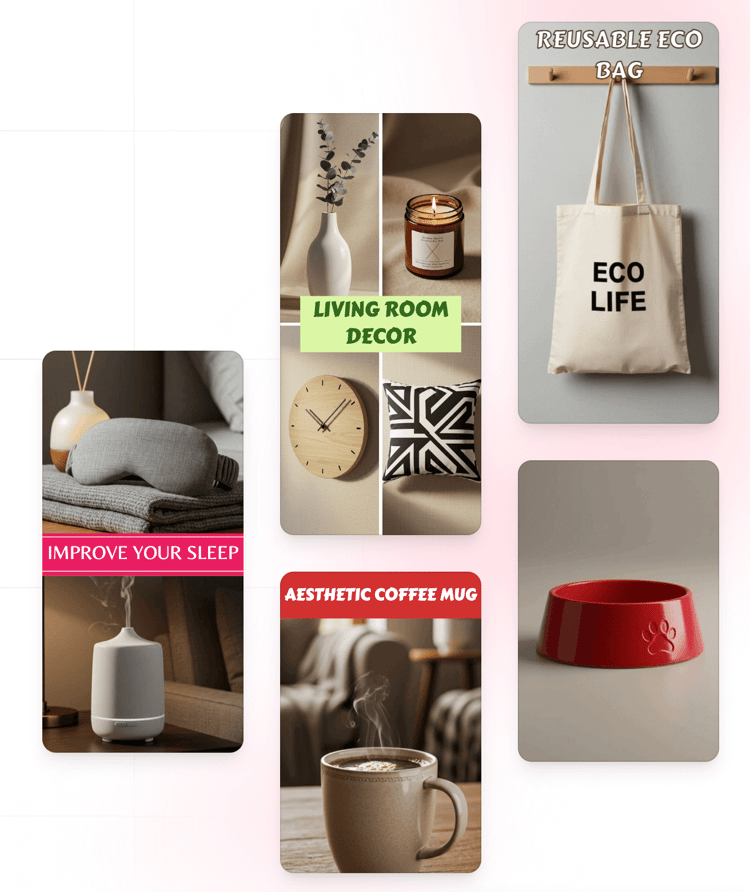
- Lifestyle pins for bestsellers. Use a photo of the product in use, cropped to 2:3 (1000 x 1500 px is Pinterest's recommendation), with a short text overlay. Link it to the product page, not the homepage.
- Collection pins. A collage of 4-6 products from one collection, linked to the collection URL. "Linen bedding in 6 colors" works as a pin in a way a single product shot doesn't.
- Blog post pins. If your store has a blog, guides and how-tos are the content Pinterest users save to boards. Link each pin to the post, and link from the post to the products.
- Seasonal versions. Make a new pin with a seasonal image or title rather than re-saving an old one. Pinterest warns that repeatedly saving the same pins can get flagged as spam (Pinterest Help: Pin performance and distribution).
For titles, keep the first 40 characters doing the work, since that's roughly what shows in the feed (titles can be up to 100). Keyword ideas come from Pinterest's search suggestions and Pinterest Trends. Because the tag is installed, Pinterest Analytics can show conversions as well as clicks, so you can see which of these pins actually lead to sales.
Where to find every URL you might pin
Shopify generates a sitemap at yourstore.com/sitemap.xml that links to separate sitemaps for products, collections, blogs and pages, and it updates when you add any of them (Shopify Help: Find your sitemap). It isn't readable while the store is password-protected.
Each Shopify blog also has a feed at the blog URL plus .atom, for example /blogs/news.atom (Shopify Help: Publishing blogs). One catch: Pinterest's own RSS auto-publish feature says it doesn't support Atom feeds, only RSS (Pinterest Help: Auto-publish Pins from your RSS feed). So you can't point Pinterest straight at a Shopify blog feed.
Doing it manually vs. automating with BlogToPin
Disclosure: BlogToPin is our product.
By hand, the workflow is: pick a URL from the sitemap, make a 2:3 image in a design tool, write the title and description, and schedule it. Pinterest's native scheduler lets you queue up to 10 pins, up to 30 days ahead (Pinterest Help: Schedule Pins). That works for a handful of products. With hundreds of SKUs, the catalog covers the basics and the lifestyle and collection pins tend not to get made.
BlogToPin's Shopify integration connects to your store and imports products, collections and blog posts. It designs several pin variations per page from your product images, writes Pinterest titles and descriptions with AI, and schedules everything with spacing between pins to the same product. It works alongside the Pinterest app: the app handles the catalog, tag and claimed domain, and BlogToPin handles the extra pins.
Plans start at $39/month, or $25/month billed annually. There's no free trial, but you can generate and preview pins before paying. See the Shopify use case page for examples.
If you fulfill through Printify, its mockup and republishing settings affect which images end up in your Shopify catalog. That's covered in how to create pins for a Printify shop. For single pins, the free Pinterest pin maker and title and description generator are enough.


